> ## Documentation Index
> Fetch the complete documentation index at: https://docs.quidkey.com/llms.txt
> Use this file to discover all available pages before exploring further.
# Create from the Console
> Create and share a payment link from the Quidkey Console - no code required
Payment Links let you collect an instant Pay by Bank payment with nothing but a link, no card required and no account creation for your customer. You can create one directly from the Quidkey Console in a few clicks, with no code at all.
**Prefer to integrate programmatically?** Developers can create the same links via the API. See [Create a Checkout Link](/guides/payment-links/create).
## Step 1: Create the payment link
Log in to the [Quidkey Console](https://console.quidkey.com), go to **Payment Links**, and click **Create Payment Link**.
Fill in the link details:
* **Amount** — the amount you want to collect
* **Currency** — the currency for the payment
* **Payment Reference** — appears on the transaction and the customer's bank statement (e.g. an invoice number, up to 18 characters)
* **Order ID** *(optional)* — your own internal reference for reconciliation
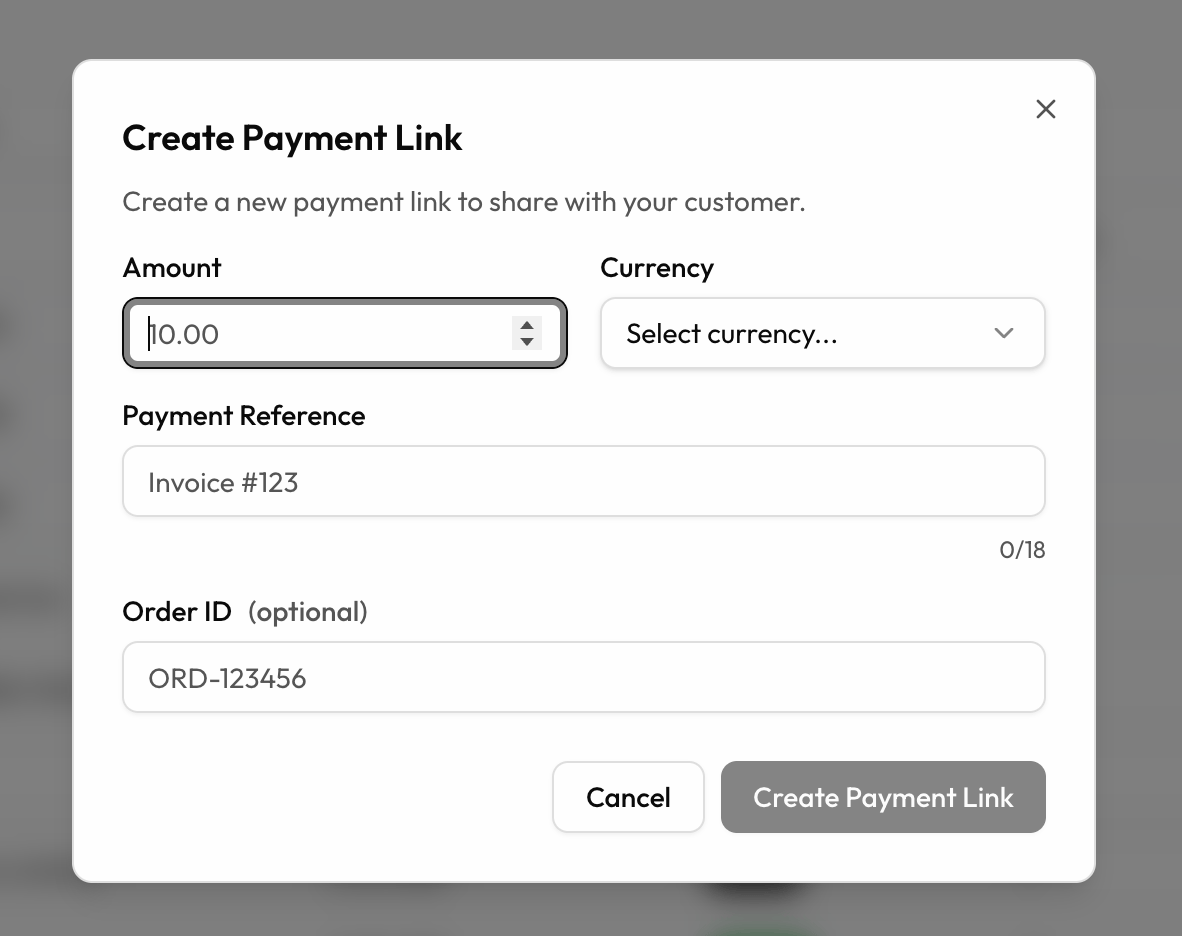 Click **Create Payment Link** to generate your link.
## Step 2: Copy and share the link
Once the link is created, click **Copy Link** and send it to your customer however you like, by email, SMS, messaging app, or include it in an invoice.
Click **Create Payment Link** to generate your link.
## Step 2: Copy and share the link
Once the link is created, click **Copy Link** and send it to your customer however you like, by email, SMS, messaging app, or include it in an invoice.
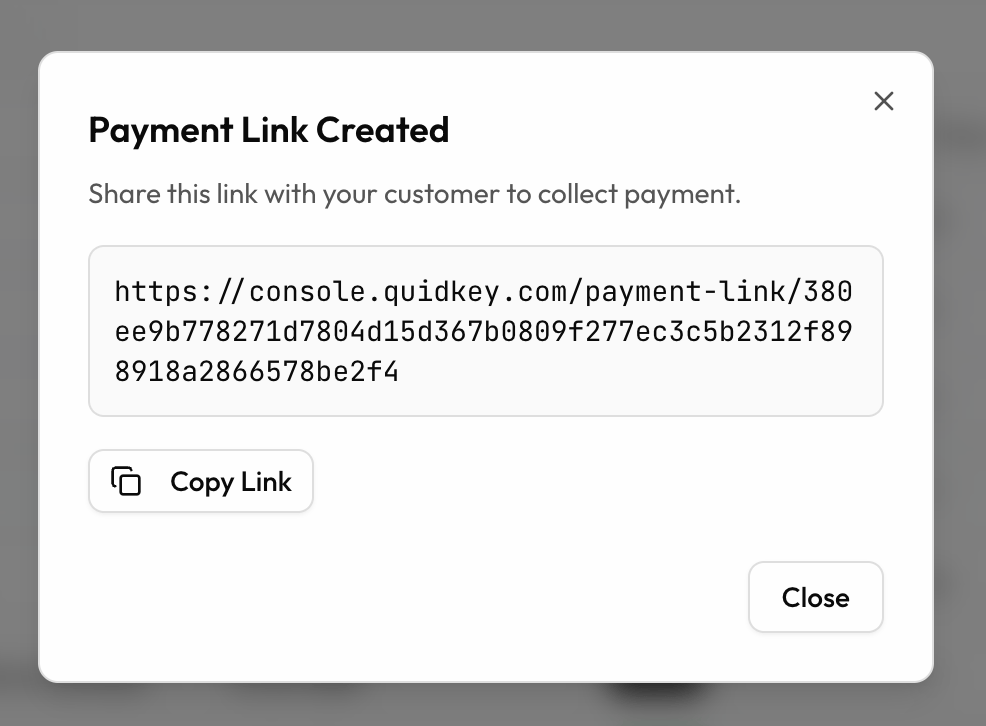 Lost the link? You can recover it at any time from the **Payment Links** list in the Console.
## Step 3: Your customer completes the payment
When your customer opens the link, they land on a fully branded checkout page where they enter their details and confirm the payment in their banking app. Quidkey predicts their bank automatically, or they can pick it from the list. The whole thing takes a few seconds, with no card details and no account creation.
Walk through exactly what your customer sees, step by step.
## Step 4: Payment confirmed
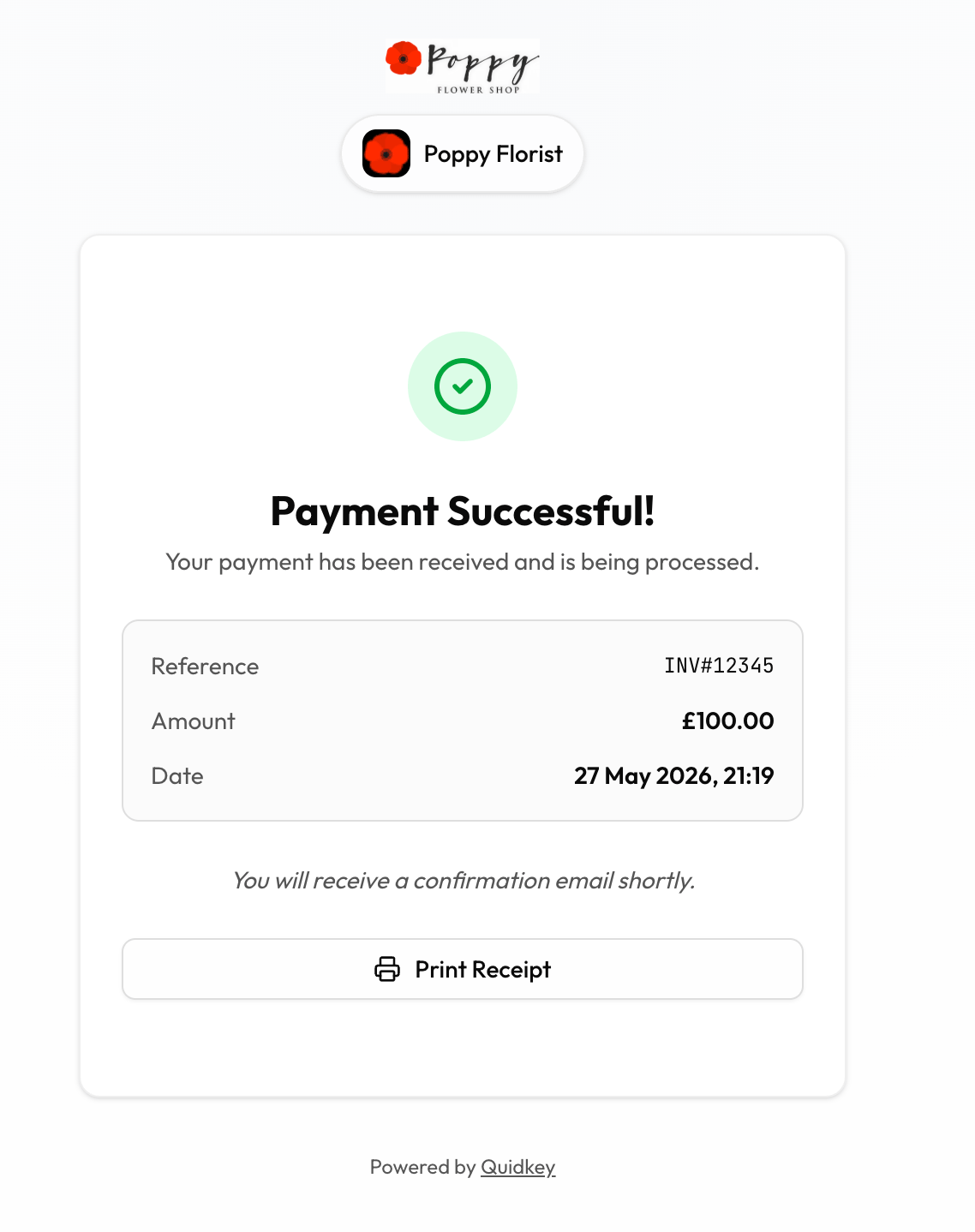
As soon as your customer approves the payment in their banking app, it is confirmed instantly. They see a confirmation page, and the payment appears in your Quidkey Console straight away.
Lost the link? You can recover it at any time from the **Payment Links** list in the Console.
## Step 3: Your customer completes the payment
When your customer opens the link, they land on a fully branded checkout page where they enter their details and confirm the payment in their banking app. Quidkey predicts their bank automatically, or they can pick it from the list. The whole thing takes a few seconds, with no card details and no account creation.
Walk through exactly what your customer sees, step by step.
## Step 4: Payment confirmed
As soon as your customer approves the payment in their banking app, it is confirmed instantly. They see a confirmation page, and the payment appears in your Quidkey Console straight away.
 **That's it.** No chasing bank transfers. No waiting for payments to clear. Just a link.
## Next Steps
What your customers see when they open a payment link
Track status and manage your links
Generate links programmatically with the Quidkey API
Payment Links overview and lifecycle
**That's it.** No chasing bank transfers. No waiting for payments to clear. Just a link.
## Next Steps
What your customers see when they open a payment link
Track status and manage your links
Generate links programmatically with the Quidkey API
Payment Links overview and lifecycle