> ## Documentation Index
> Fetch the complete documentation index at: https://docs.quidkey.com/llms.txt
> Use this file to discover all available pages before exploring further.
# Shopify Onboarding
> Connect your Shopify store to Quidkey and enable Pay by Bank in your checkout
This guide walks you through connecting your Shopify store to Quidkey and enabling Pay by Bank in your checkout. You can test Quidkey on your Shopify store without completing KYC or KYB. Full verification is only required when you're ready to go live.
## Prerequisites
* A Shopify store with admin access
* A Quidkey account (no documents or contracts required)
You can install the app, connect it, and run a full test payment without providing any business information.
* Business registration details
* Director and beneficial owner information
* Proof of identity
* Business bank account information (for payouts)
This is the standard KYB/KYC verification required for regulated payment processing.
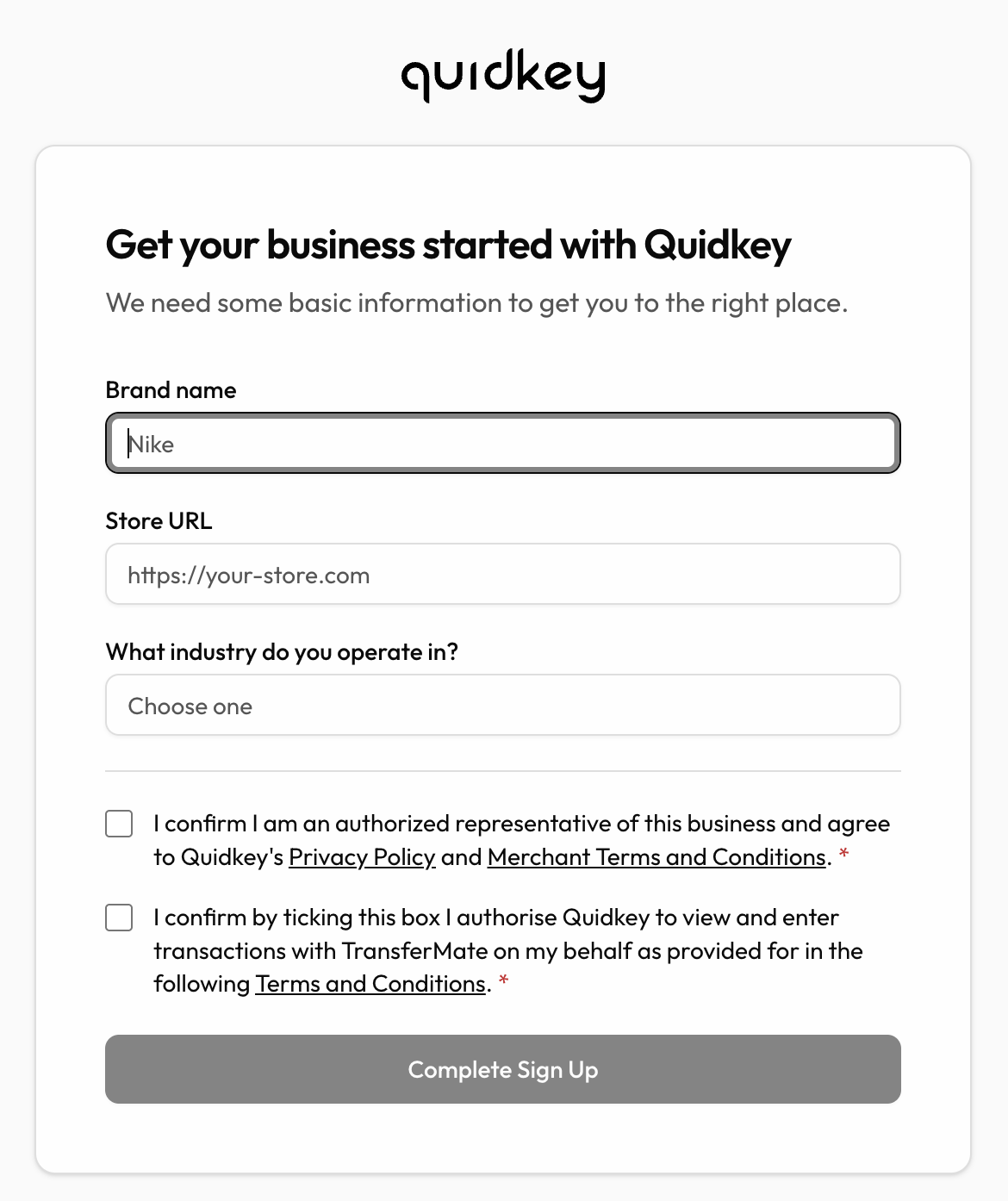
## Step 1: Create Your Quidkey Account
Go to [console.quidkey.com/signup](https://console.quidkey.com/signup) and create your account.
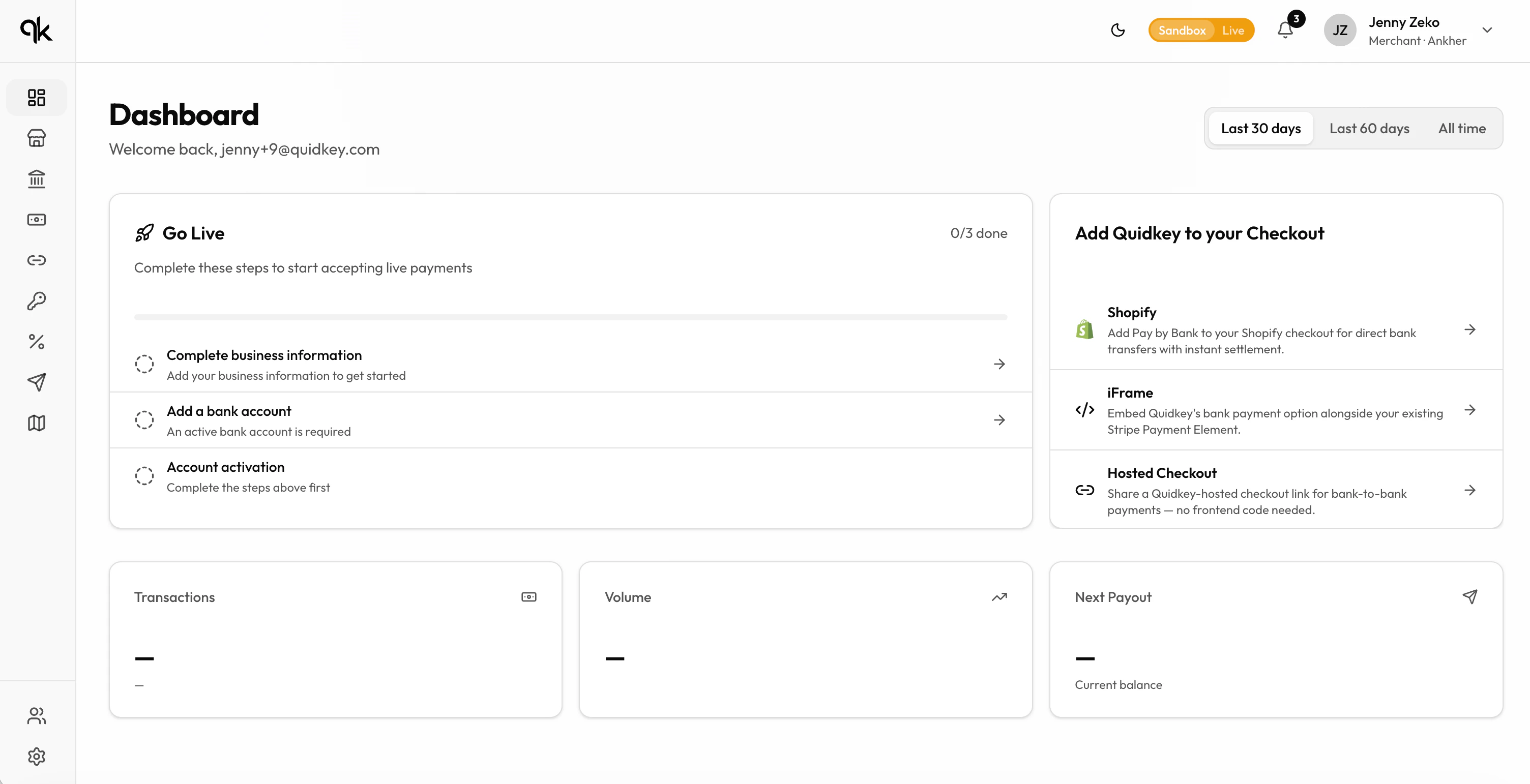
 Your dashboard lists the steps required to finish setting up your account. You can complete them in any order, but we recommend installing the Shopify app first.
 ## Step 2: Install the Shopify App
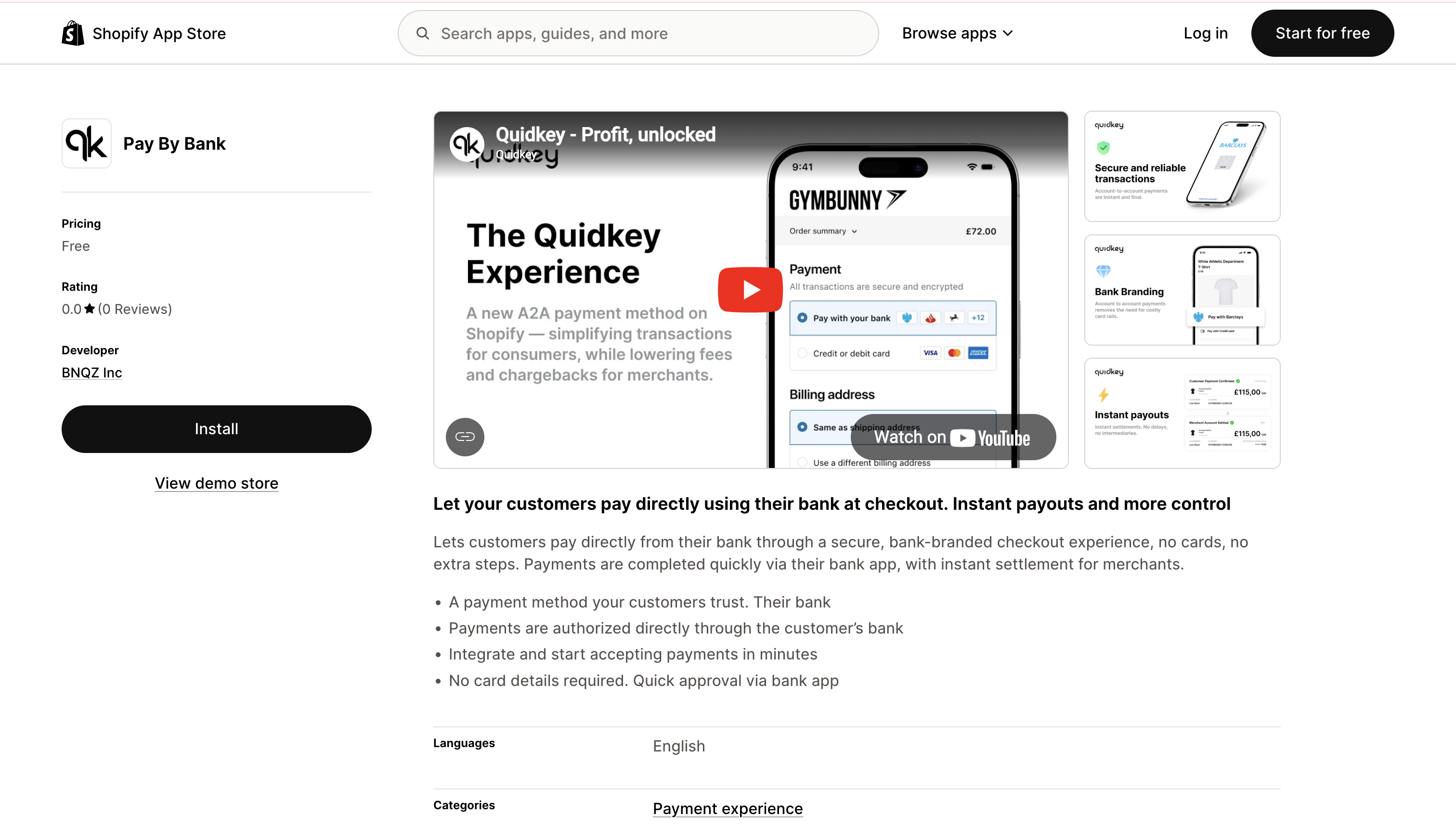
You can also open the app directly: [apps.shopify.com/quidkey-checkout](https://apps.shopify.com/quidkey-checkout).
Click the **Shopify** icon on your Quidkey Dashboard. Shopify will open in a new tab showing the **Pay by Bank** app.
Click **Install**.
## Step 2: Install the Shopify App
You can also open the app directly: [apps.shopify.com/quidkey-checkout](https://apps.shopify.com/quidkey-checkout).
Click the **Shopify** icon on your Quidkey Dashboard. Shopify will open in a new tab showing the **Pay by Bank** app.
Click **Install**.
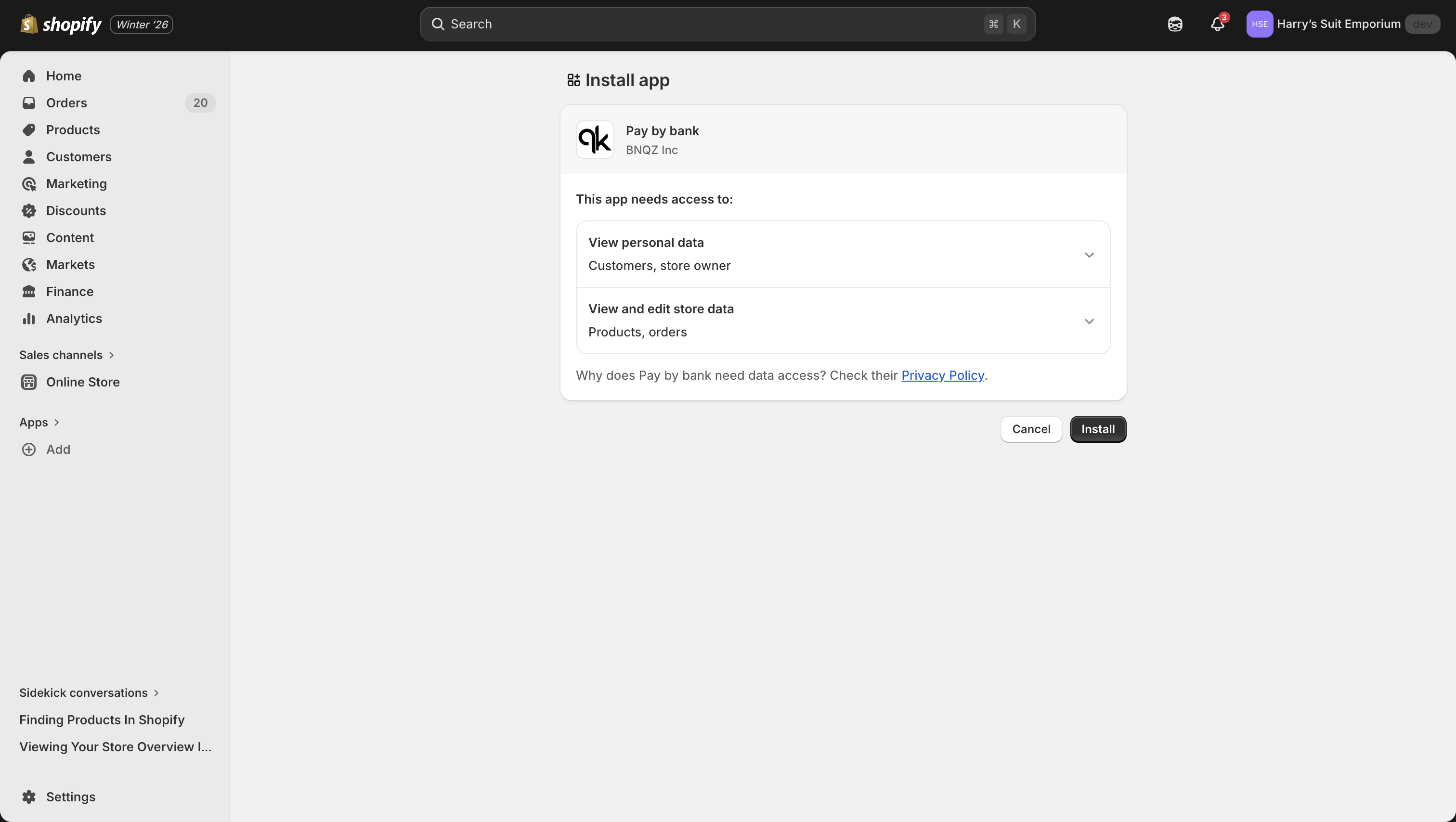
 Shopify will show the permissions screen. Click **Install** again to approve.
 After installation, Shopify will automatically redirect you to the **Connect Quidkey** page. Keep both Shopify and Quidkey tabs open, you'll connect them in the next step.
## Step 3: Connect Shopify to Quidkey
After installation, Shopify redirects you to the **Connect Quidkey** page. You need to copy your credentials from the Quidkey Console and paste them into Shopify.
In your Quidkey Console, open the **Credentials** tab and click **Generate** to create your Secret Key.
After installation, Shopify will automatically redirect you to the **Connect Quidkey** page. Keep both Shopify and Quidkey tabs open, you'll connect them in the next step.
## Step 3: Connect Shopify to Quidkey
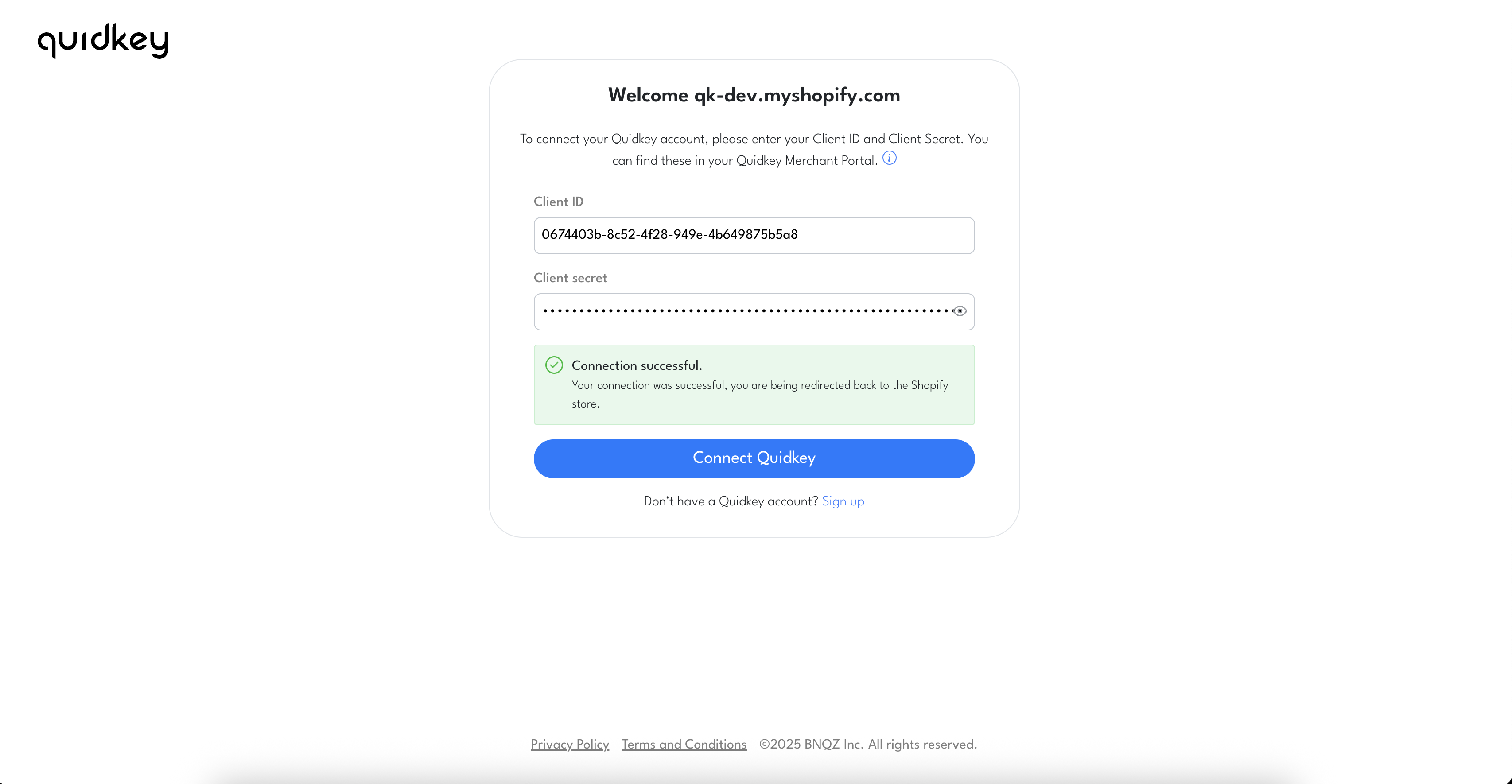
After installation, Shopify redirects you to the **Connect Quidkey** page. You need to copy your credentials from the Quidkey Console and paste them into Shopify.
In your Quidkey Console, open the **Credentials** tab and click **Generate** to create your Secret Key.
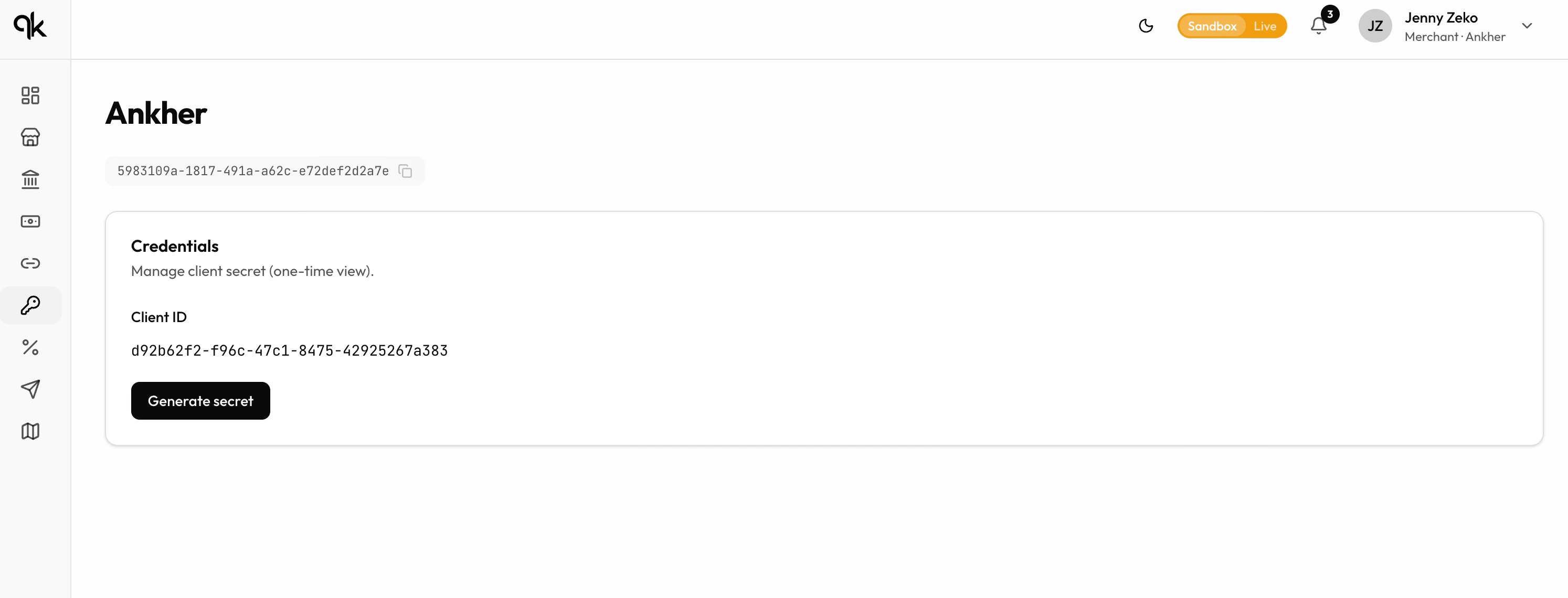
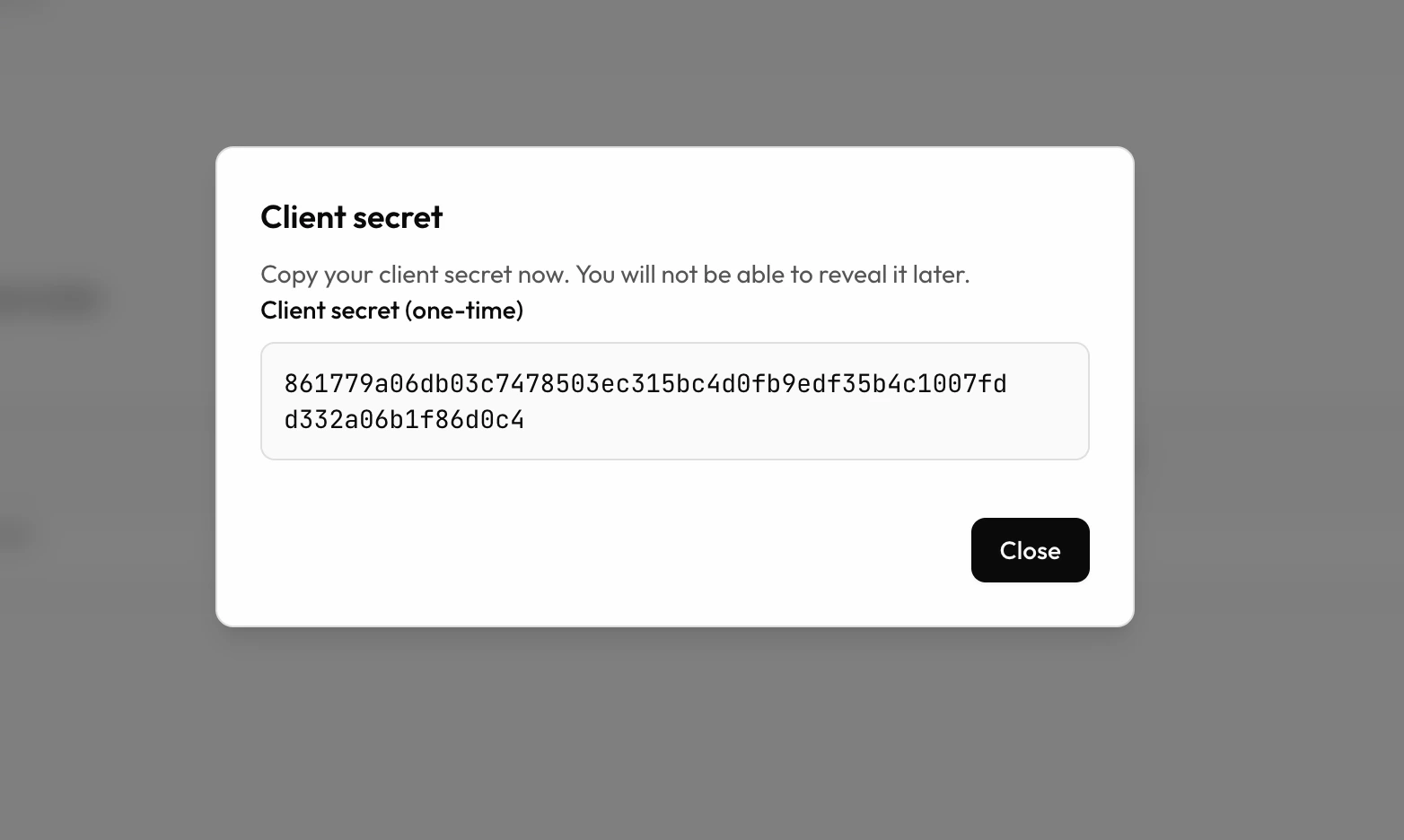 Your Client Secret is shown **only once**. Copy it immediately and paste it into Shopify.
Paste the Client Secret into the **Client secret** field in Shopify, then click **Connect Quidkey**.
Your Client Secret is shown **only once**. Copy it immediately and paste it into Shopify.
Paste the Client Secret into the **Client secret** field in Shopify, then click **Connect Quidkey**.
 ### Enable Test Mode and Activate Quidkey
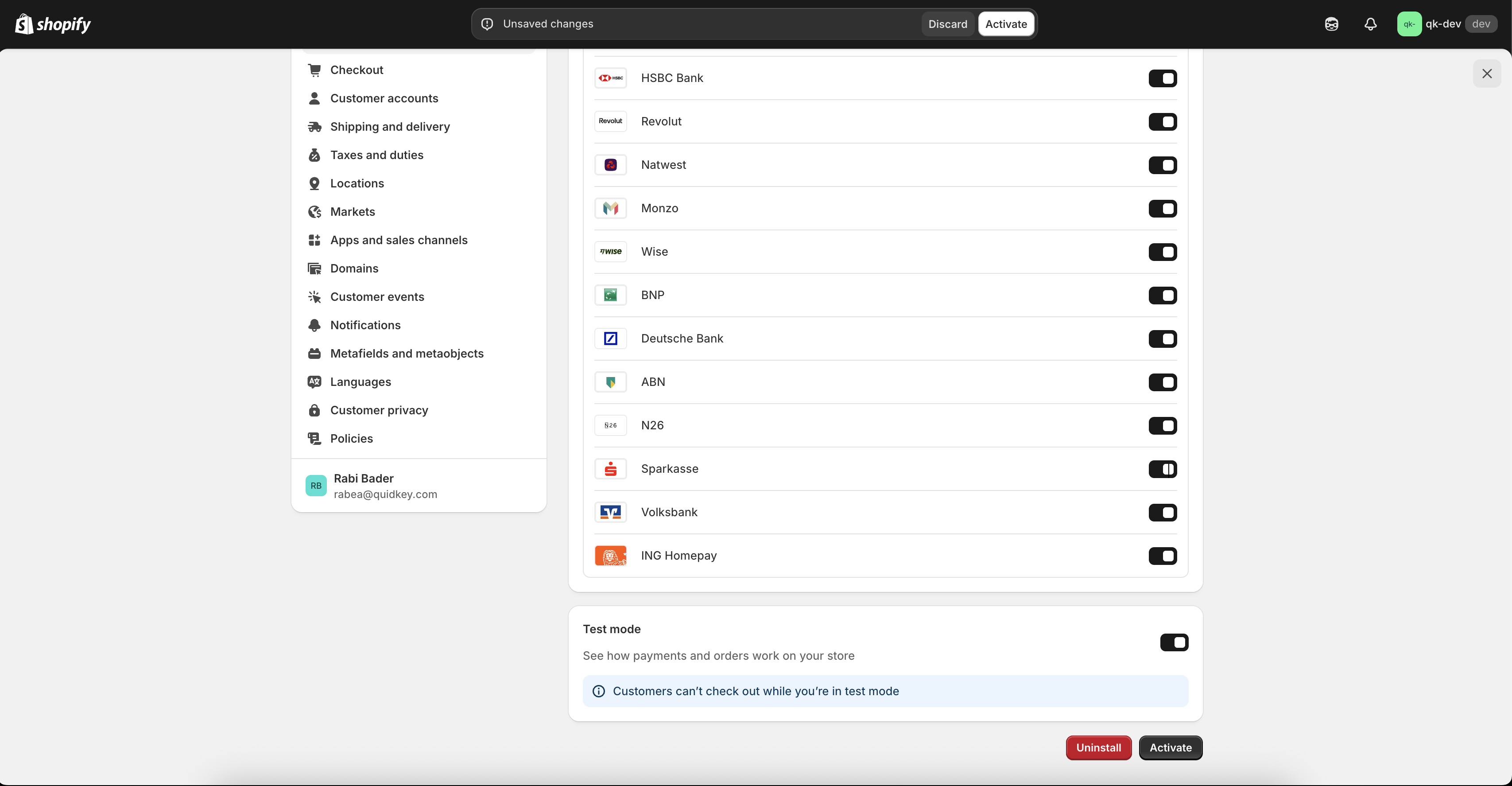
After connecting, Shopify will show your Quidkey payment provider settings. Test Mode is normally enabled by default. If not, enable it manually:
1. Scroll to **Test Mode**
2. Turn **Test mode** on
3. Click **Activate**
This allows you to make test payments safely without affecting real orders.
### Enable Test Mode and Activate Quidkey
After connecting, Shopify will show your Quidkey payment provider settings. Test Mode is normally enabled by default. If not, enable it manually:
1. Scroll to **Test Mode**
2. Turn **Test mode** on
3. Click **Activate**
This allows you to make test payments safely without affecting real orders.
 ## Step 4: Enable Pay by Bank Spotlight (Recommended)
**Pay by Bank Spotlight** adds a small guidance indicator on your product pages. It's not a payment button; the actual Pay by Bank option appears on the checkout page. This indicator helps customers understand early that they can pay with their bank and increases conversion.
## Step 4: Enable Pay by Bank Spotlight (Recommended)
**Pay by Bank Spotlight** adds a small guidance indicator on your product pages. It's not a payment button; the actual Pay by Bank option appears on the checkout page. This indicator helps customers understand early that they can pay with their bank and increases conversion.
 In your Shopify admin, go to **Online Store** > **Themes** and click **Customize** on your active theme.
In the theme editor sidebar, open **App embeds**. Find **Pay by Bank Spotlight**, turn the toggle on, and click **Save**.
In your Shopify admin, go to **Online Store** > **Themes** and click **Customize** on your active theme.
In the theme editor sidebar, open **App embeds**. Find **Pay by Bank Spotlight**, turn the toggle on, and click **Save**.
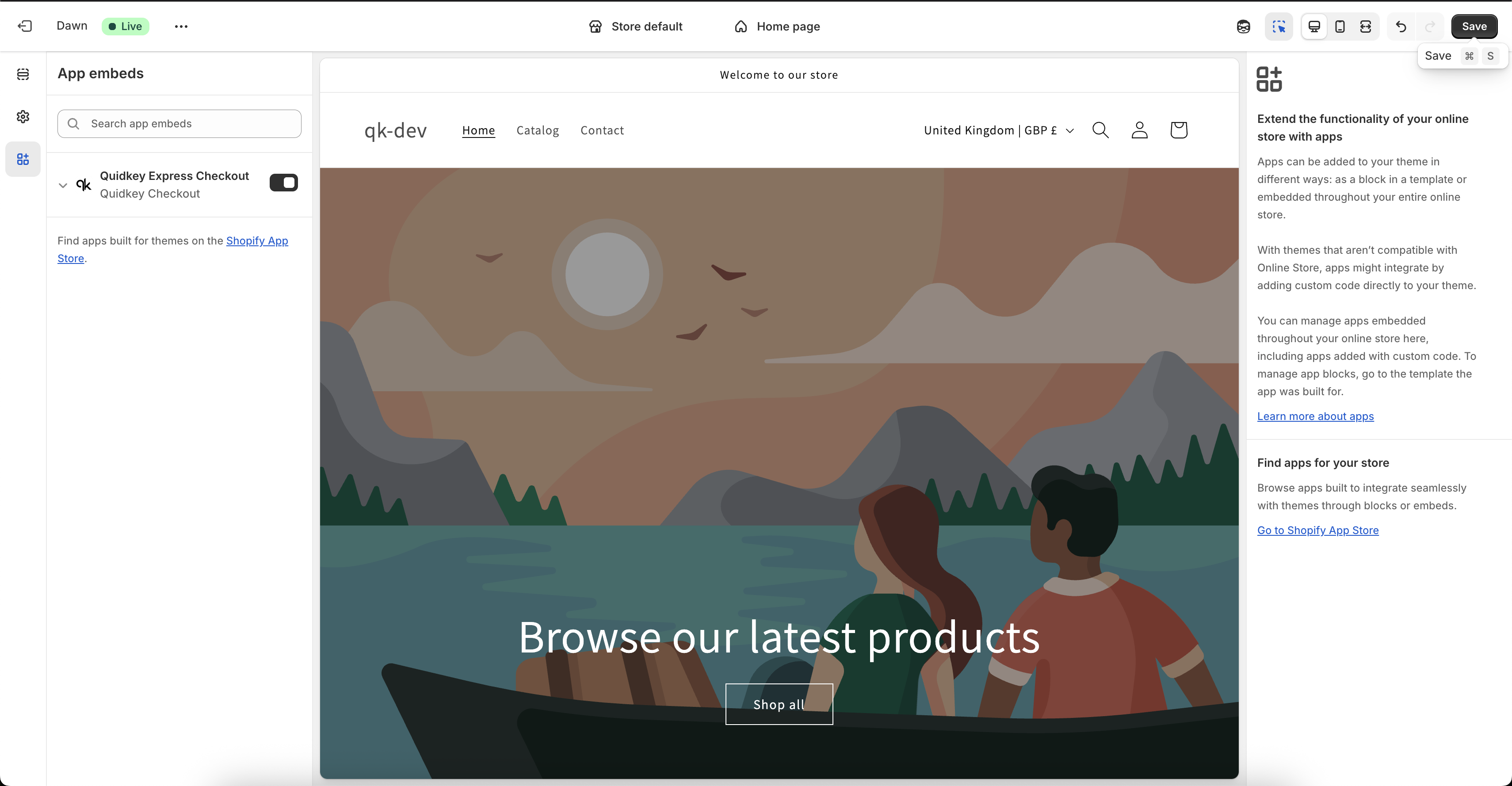 Open your staging store URL (`https://{your-store-name}.myshopify.com`), go to any product page, and check that the Pay by Bank indicator appears.
## Step 5: Test Your Checkout
You can try Pay by Bank immediately, without completing KYC.
To run a test payment, you must use your **Shopify staging URL** (`https://{your-store-name}.myshopify.com`), not your custom domain. Test payment methods are **only** shown on the staging URL.
Go to `https://{your-store-name}.myshopify.com`.
Add any product to your cart and proceed to checkout.
You should see **Pay with your bank** as a payment option.
Open your staging store URL (`https://{your-store-name}.myshopify.com`), go to any product page, and check that the Pay by Bank indicator appears.
## Step 5: Test Your Checkout
You can try Pay by Bank immediately, without completing KYC.
To run a test payment, you must use your **Shopify staging URL** (`https://{your-store-name}.myshopify.com`), not your custom domain. Test payment methods are **only** shown on the staging URL.
Go to `https://{your-store-name}.myshopify.com`.
Add any product to your cart and proceed to checkout.
You should see **Pay with your bank** as a payment option.
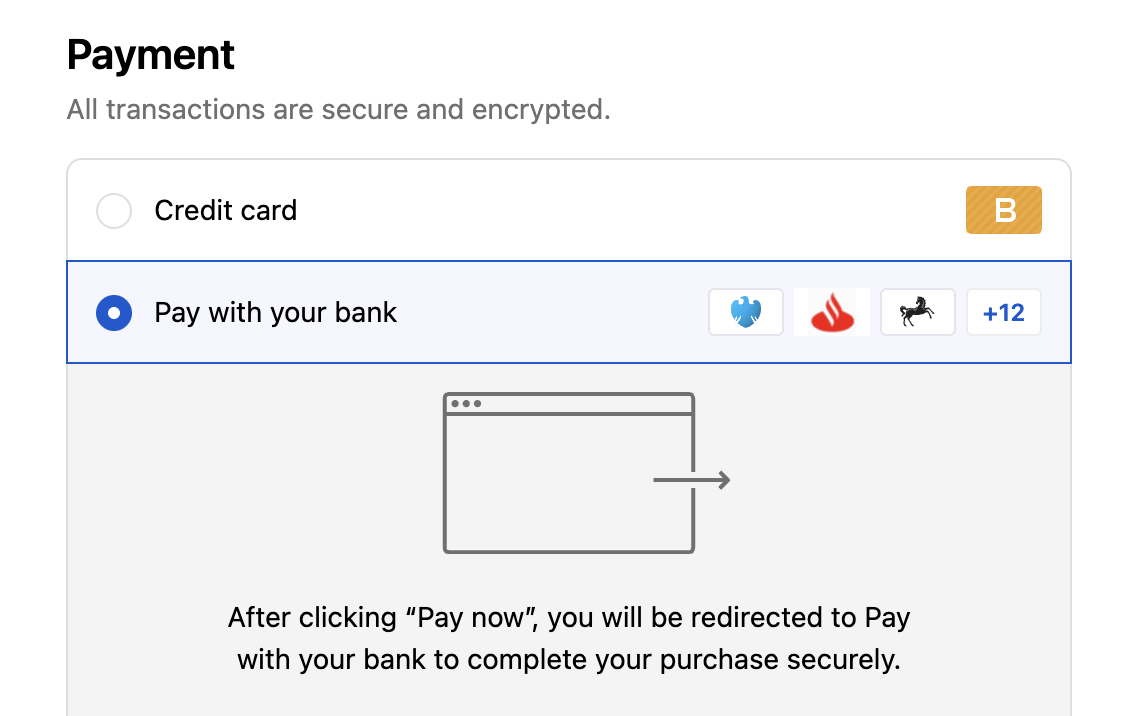 Choose any test bank and complete the simulated flow. Check your Quidkey dashboard to confirm the test order appears.
If you see "Pay with your bank" at checkout and can complete a test payment, your integration is working correctly.
## Step 6: Add Your Business Information
On your Dashboard you'll find a **Go Live checklist** with the required steps before you can start receiving real payments:
1. Complete Business Information
2. Add Director and Beneficial Owner Information
3. Add a Bank Account
KYC/KYB verification typically completes in minutes once all details are submitted. Once approved:
* Live payments will be enabled in your Quidkey account
* Payouts will be activated
* Your pricing will be applied
## Step 7: Start Accepting Payments
Once your business has been approved you can switch off Test Mode and start accepting customer payments.
In your Shopify admin, open the Pay by Bank app settings.
Toggle Test Mode off. Your store is now live and ready to accept real Pay by Bank payments.
## Troubleshooting
* Confirm **Shopify Payments** is enabled on your store
* Check that your Client Secret is valid and correctly pasted
* Try a private/incognito window to remove cached settings
* Make sure you're using the staging URL (`{store}.myshopify.com`) for test mode
* Verify the Client Secret in Shopify matches your Quidkey Console
* Confirm the app is installed and connected correctly
* Try disconnecting and reconnecting the app
* Pricing is applied after KYC/KYB verification is complete
* In test mode, default pricing is used
## FAQ
No. KYC is only required when you want to go live and receive real payouts. You can fully test the integration without any verification.
Yes. Quidkey works alongside any other payment gateway on Shopify. Customers choose their preferred method at checkout.
Usually minutes, depending on the documents provided. We'll notify you once verification is complete.
Payouts are sent to your designated business bank account after KYC approval. Payout frequency and timing depend on your plan.
Yes. Use [Payment Links](/guides/payment-links/overview) to collect a Pay by Bank payment with just a shareable link, ideal for invoices or ad-hoc charges. You can [create one from the Console](/guides/payment-links/console) with no code.
## Support
Questions? We're here to help:
* Email: [support@quidkey.com](mailto:support@quidkey.com)
* Slack: We can create a shared channel for ongoing communication
* Video calls: Contact [support@quidkey.com](mailto:support@quidkey.com) to schedule one
Choose any test bank and complete the simulated flow. Check your Quidkey dashboard to confirm the test order appears.
If you see "Pay with your bank" at checkout and can complete a test payment, your integration is working correctly.
## Step 6: Add Your Business Information
On your Dashboard you'll find a **Go Live checklist** with the required steps before you can start receiving real payments:
1. Complete Business Information
2. Add Director and Beneficial Owner Information
3. Add a Bank Account
KYC/KYB verification typically completes in minutes once all details are submitted. Once approved:
* Live payments will be enabled in your Quidkey account
* Payouts will be activated
* Your pricing will be applied
## Step 7: Start Accepting Payments
Once your business has been approved you can switch off Test Mode and start accepting customer payments.
In your Shopify admin, open the Pay by Bank app settings.
Toggle Test Mode off. Your store is now live and ready to accept real Pay by Bank payments.
## Troubleshooting
* Confirm **Shopify Payments** is enabled on your store
* Check that your Client Secret is valid and correctly pasted
* Try a private/incognito window to remove cached settings
* Make sure you're using the staging URL (`{store}.myshopify.com`) for test mode
* Verify the Client Secret in Shopify matches your Quidkey Console
* Confirm the app is installed and connected correctly
* Try disconnecting and reconnecting the app
* Pricing is applied after KYC/KYB verification is complete
* In test mode, default pricing is used
## FAQ
No. KYC is only required when you want to go live and receive real payouts. You can fully test the integration without any verification.
Yes. Quidkey works alongside any other payment gateway on Shopify. Customers choose their preferred method at checkout.
Usually minutes, depending on the documents provided. We'll notify you once verification is complete.
Payouts are sent to your designated business bank account after KYC approval. Payout frequency and timing depend on your plan.
Yes. Use [Payment Links](/guides/payment-links/overview) to collect a Pay by Bank payment with just a shareable link, ideal for invoices or ad-hoc charges. You can [create one from the Console](/guides/payment-links/console) with no code.
## Support
Questions? We're here to help:
* Email: [support@quidkey.com](mailto:support@quidkey.com)
* Slack: We can create a shared channel for ongoing communication
* Video calls: Contact [support@quidkey.com](mailto:support@quidkey.com) to schedule one