

This guide picks up once your Quidkey account has been approved. If you haven’t created an account or completed verification yet, start with the Onboarding guide.
Step 1: Install the Shopify App
You can also open the app directly: apps.shopify.com/quidkey-checkout.1
Open the App Store listing
Click the Shopify icon on your Quidkey Dashboard. Shopify will open in a new tab showing the Pay by Bank app.
2
Install the app
Click Install.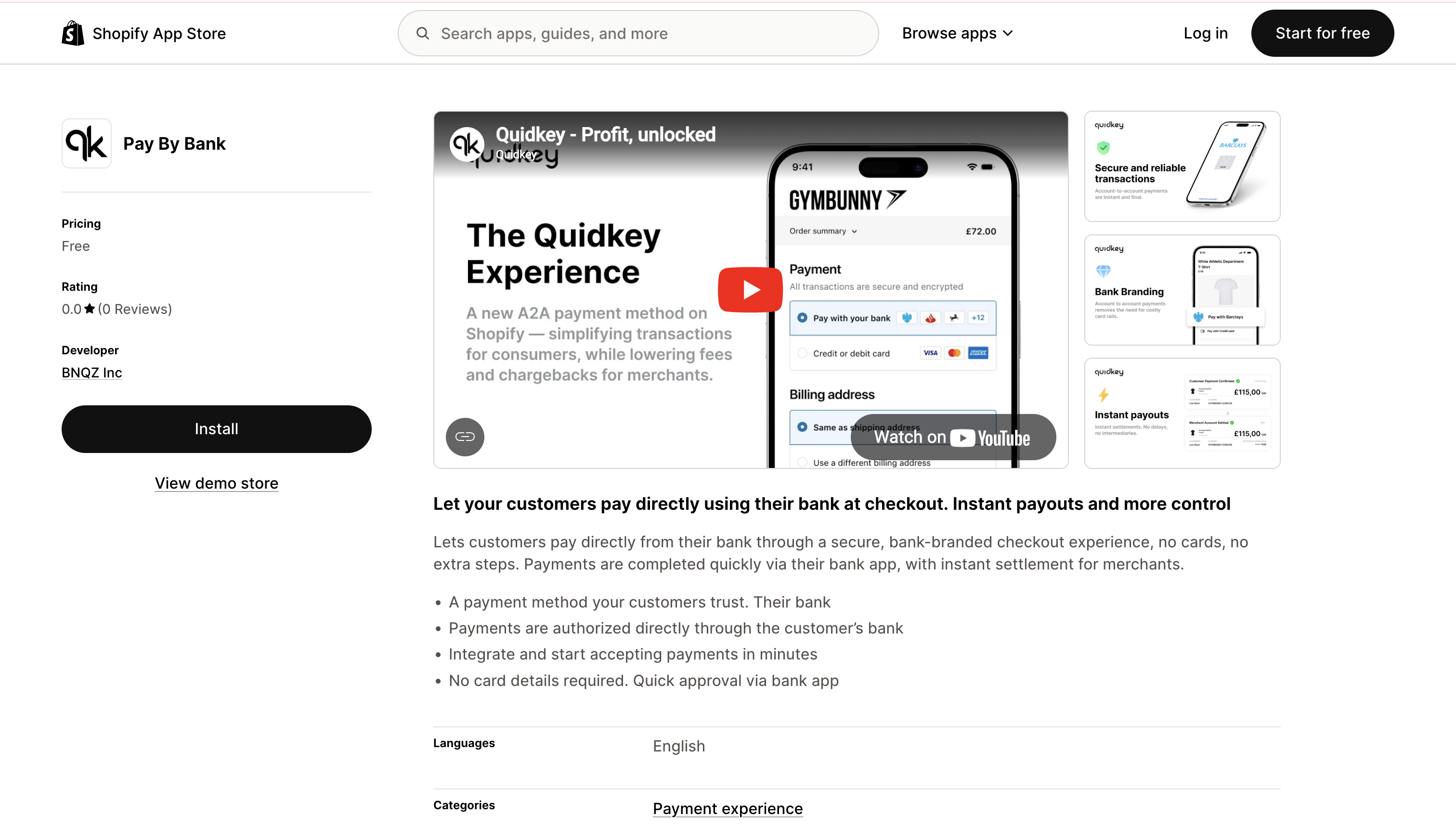
3
Approve permissions
Shopify will show the permissions screen. Click Install again to approve.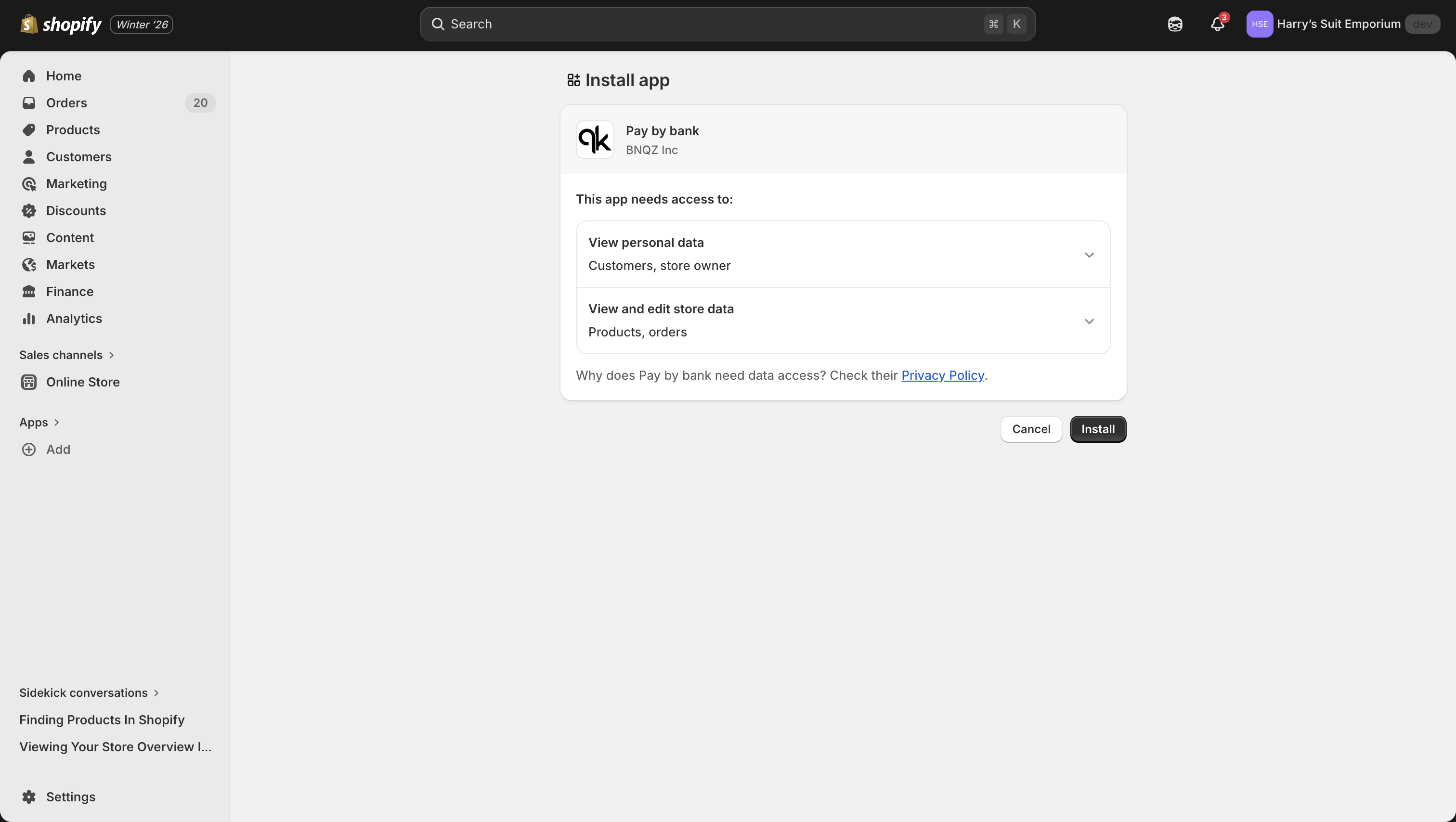
4
Continue to the Pay by Bank app page
After installation, Shopify opens the Pay by Bank app page, where you connect your store to Quidkey in the next step.
Step 2: Connect Shopify to Quidkey
You connect your store by logging in to the Quidkey Console and choosing the merchant the store belongs to. There’s no secret to copy or paste.1
Click Connect to Quidkey
On the Pay by Bank app page in Shopify, click Connect to Quidkey. The Quidkey Console opens.
2
Log in and choose your merchant
Log in to the Quidkey Console if you aren’t already, then choose the merchant this store belongs to and confirm. If you can see only one merchant, it’s chosen for you.You need permission to manage your merchant’s connections. If you don’t see your merchant, ask an admin on your Quidkey account.
3
Return to Shopify
Once connected, the Console sends you back to Shopify, straight to your Pay by Bank payment provider settings.
The connection link from Shopify expires after 15 minutes and works once. If it has expired, open the Pay by Bank app in Shopify and click Connect to Quidkey again.
Enable Test Mode and Activate Quidkey
After connecting, Shopify will show your Quidkey payment provider settings. Test Mode is normally enabled by default. If not, enable it manually:- Scroll to Test Mode
- Turn Test mode on
- Click Activate
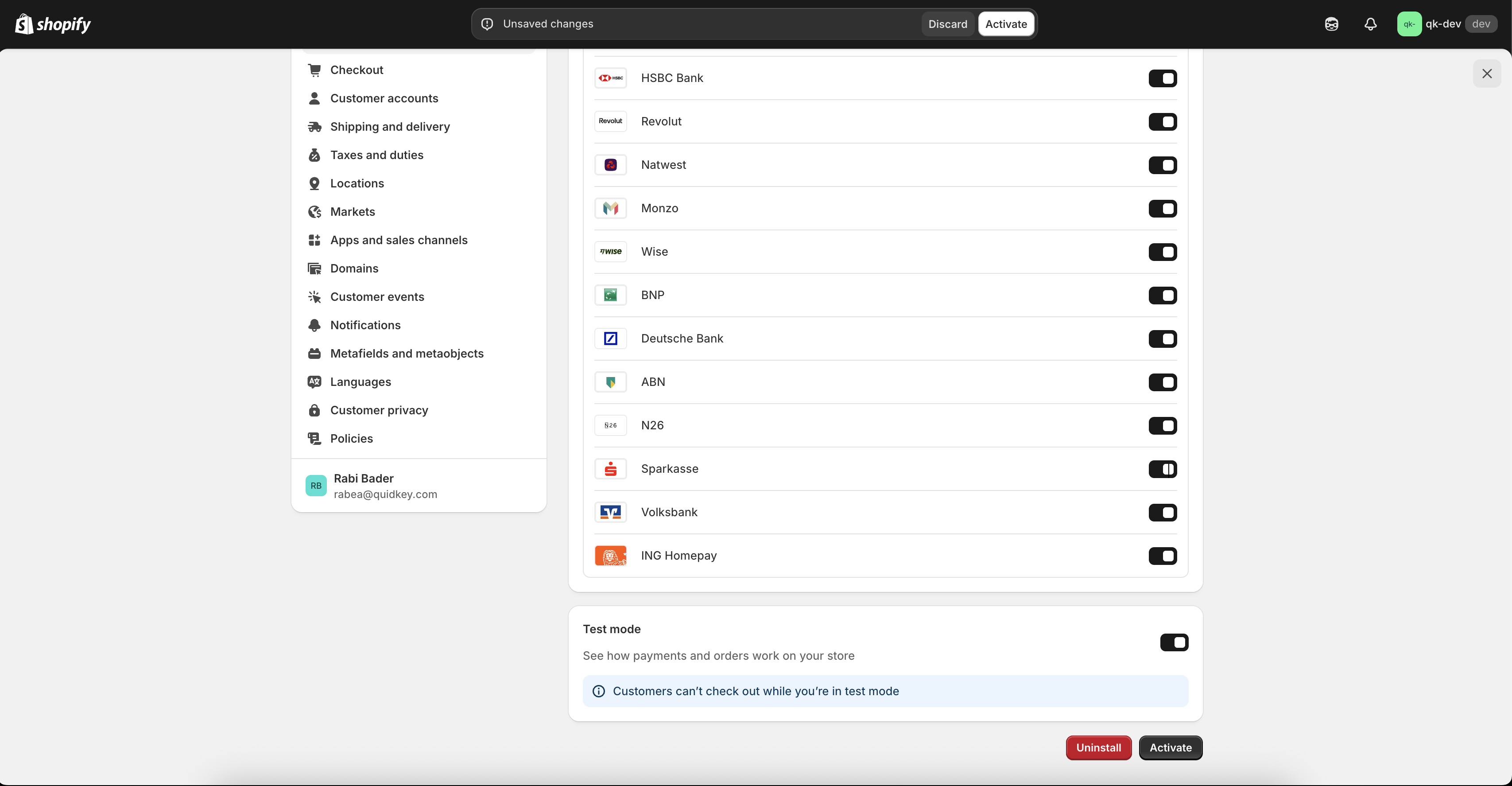
Choose the payment icons for your region
Shopify draws the icons on the Pay by bank method row from the list you enable on the provider’s settings page. In Shopify admin, open Settings > Payments, click Pay by bank, and tick only the icons that apply to your store:- Australia: tick PayTo and PayID only. Buyers whose checkout locale is en-AU then see the method as “Pay with PayTo” with the PayTo and PayID marks. A checkout reporting plain English still shows “Pay by bank”.
- UK and Europe: leave PayTo and PayID unticked and keep the bank icons for your market.
Step 3: Enable Pay by Bank Spotlight (Recommended)
Pay by Bank Spotlight adds a small guidance indicator on your product pages. It’s not a payment button; the actual Pay by Bank option appears on the checkout page. The indicator helps customers notice early that they can pay with their bank, which can increase conversion.
1
Open the theme editor
In your Shopify admin, go to Online Store > Themes and click Customize on your active theme.
2
Enable the app embed
In the theme editor sidebar, open App embeds. Find Pay by Bank Spotlight, turn the toggle on, and click Save.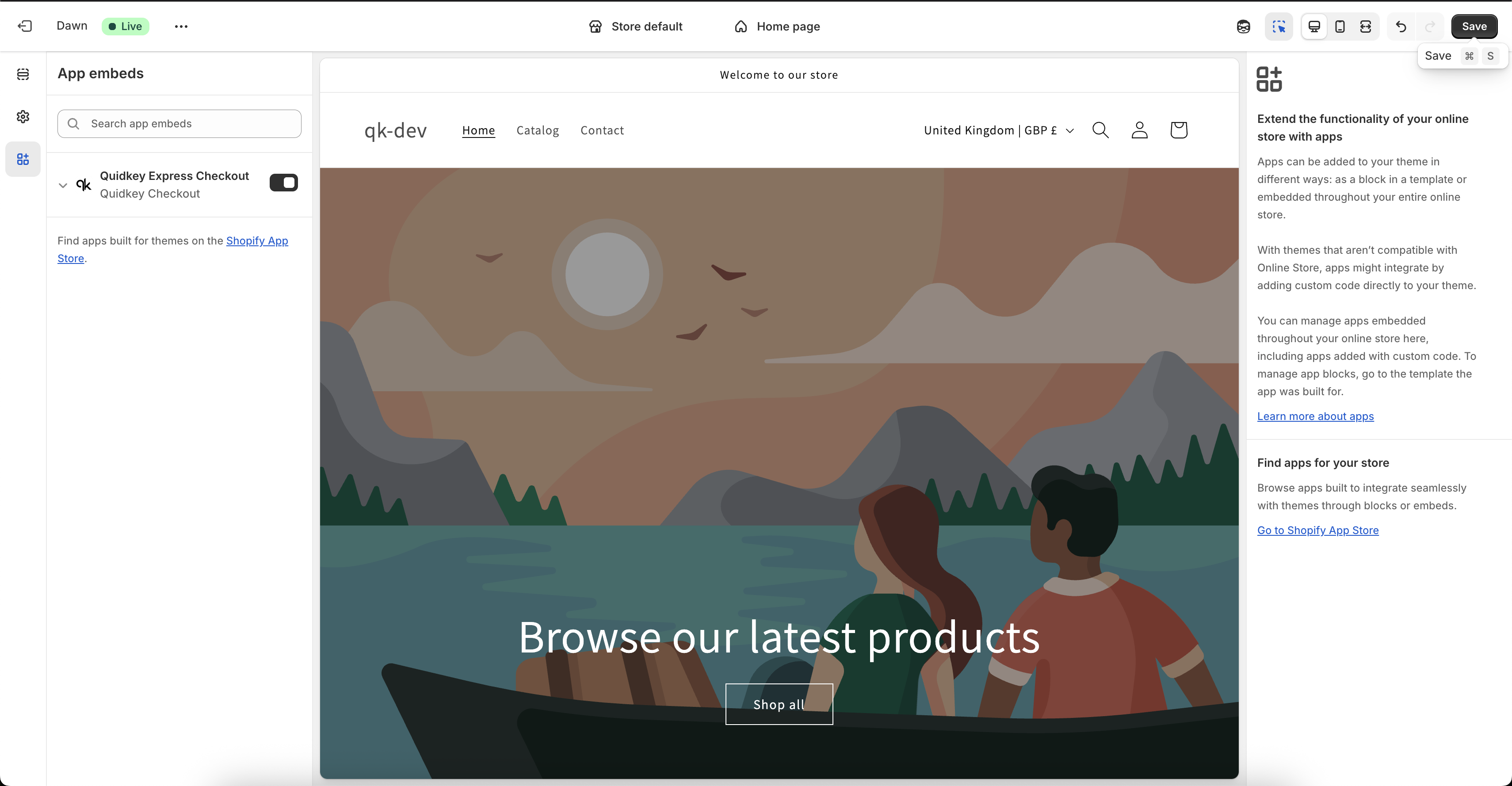
3
Verify on your store
Open your staging store URL (
https://{your-store-name}.myshopify.com), go to any product page, and check that the Pay by Bank indicator appears.Step 4: Test Your Checkout
Before going live, run a test payment to check that everything is connected.1
Open your staging URL
Go to
https://{your-store-name}.myshopify.com.2
Add a product and checkout
Add any product to your cart and proceed to checkout.
3
Select Pay by bank
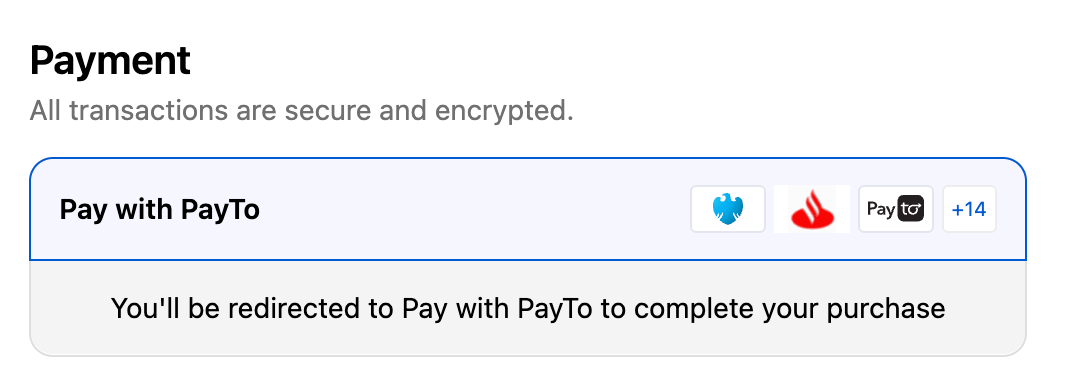
You should see Pay by bank as a payment option. Australian buyers whose checkout locale is en-AU see it as Pay with PayTo.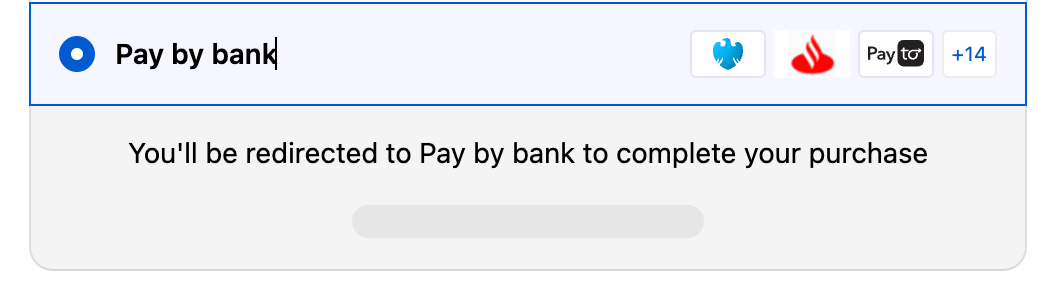
- UK and Europe
- Australia
4
Complete the test payment
Choose any test bank and complete the simulated flow. Check your Quidkey dashboard to confirm the test order appears.
If you see Pay by bank (or Pay with PayTo) at checkout and can complete a test payment, your integration is working correctly.
Step 5: Start Accepting Payments
Once your test payment works, switch off Test Mode to start accepting customer payments.1
Open the Pay by bank settings
In your Shopify admin, click Settings, go to Payments and click Pay by bank.
2
Turn off Test Mode
Scroll to the bottom, toggle Test mode off and click Save. Your store is now live and ready to accept real Pay by Bank payments.
Troubleshooting
Pay by Bank doesn't appear at checkout
Pay by Bank doesn't appear at checkout
- Confirm Shopify Payments is enabled on your store
- Open the Pay by Bank app in Shopify and check it shows your store as connected to your merchant. If it offers Connect to Quidkey, the store isn’t connected: connect it again
- Try a private/incognito window to remove cached settings
- Make sure you’re using the staging URL (
{store}.myshopify.com) for test mode
Checkout declines every Pay by Bank payment
Checkout declines every Pay by Bank payment
Your store is no longer connected to Quidkey, for example because it was disconnected in the Console. Open the Pay by Bank app in Shopify and click Connect to Quidkey.
The Console says the connection link has expired or was already used
The Console says the connection link has expired or was already used
Each link works once, within 15 minutes. Open the Pay by Bank app in Shopify and click Connect to Quidkey to get a new one.
Test order not appearing in Quidkey Dashboard
Test order not appearing in Quidkey Dashboard
- Open the Pay by Bank app in Shopify and check the store is connected to the merchant you’re looking at in the Dashboard
- Confirm the app is installed and connected correctly
- To connect the store to a different merchant, disconnect it in the Console under Connections, then connect it again from the Pay by Bank app in Shopify
FAQ
Can I use Quidkey alongside other payment methods?
Can I use Quidkey alongside other payment methods?
Yes. Quidkey works alongside any other payment gateway on Shopify. Customers choose their preferred method at checkout.
Can I collect a one-off payment outside of checkout?
Can I collect a one-off payment outside of checkout?
Yes. Use Payment Links to collect a Pay by Bank payment with just a shareable link, ideal for invoices or ad-hoc charges. You can create one from the Console with no code.
Support
Questions? We’re here to help:- Email: support@quidkey.com
- Slack: We can create a shared channel for ongoing communication
- Video calls: Contact support@quidkey.com to schedule one